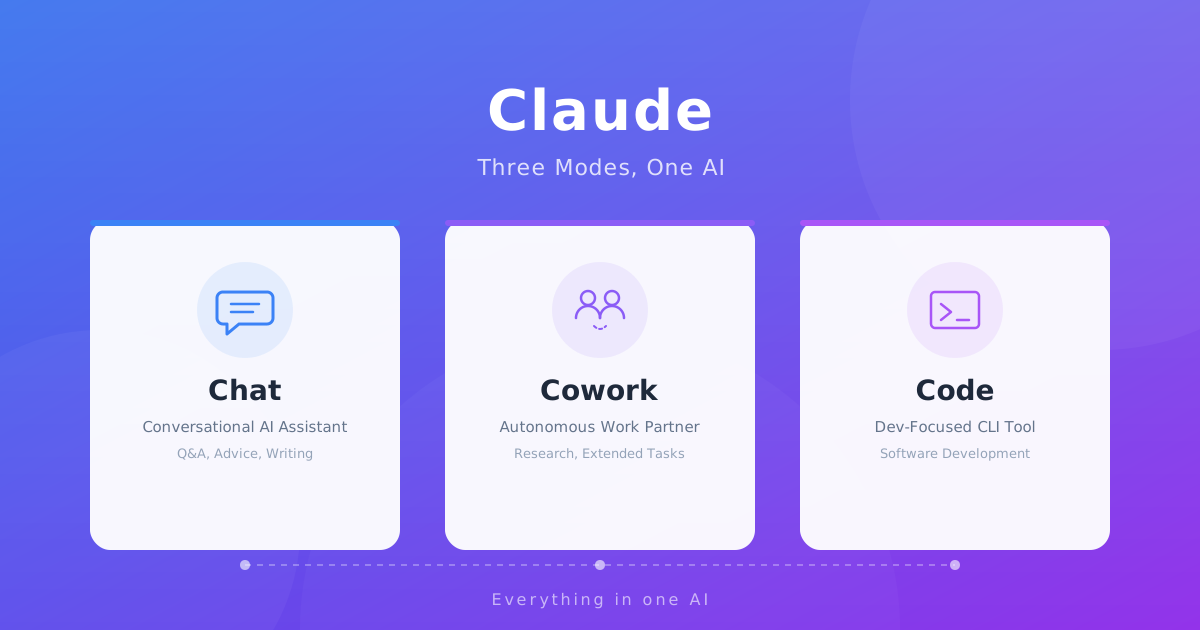
When you open Claude, you'll notice three tabs sitting at the top of the screen: Chat, Cowork, and Code.
If you've been thinking "I'll just use Chat for everything," you're actually leaving a lot on the table. These three tabs are built on fundamentally different design philosophies, and simply choosing the right one can dramatically boost your productivity.
In this article, I'll walk you through the differences between each tab and how to pick the best one for any situation, based on my own hands-on experience using Claude every day.
Overview of the Three Tabs
Let's start with the big picture. In a nutshell, here's how Claude's three tabs break down.
- Chat: A back-and-forth Q&A format — your classic "AI chat" experience
- Cowork: A collaborative mode where Claude works on tasks in the background for you
- Code: A developer-focused tool for reading and writing code right from the terminal
Let's dig into each one.
Chat — Your Versatile Conversation Partner
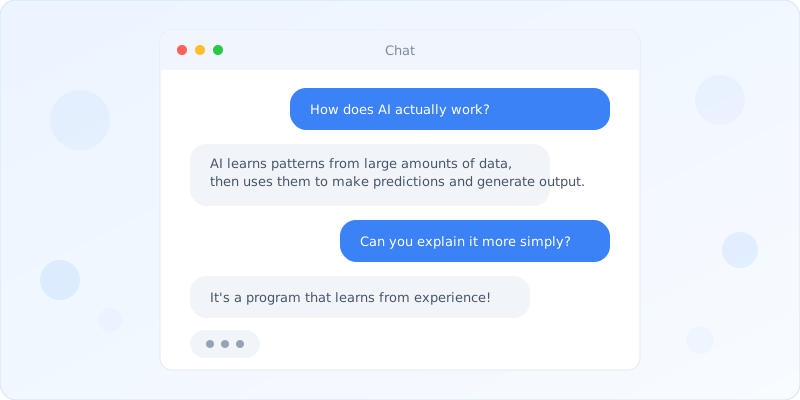
This is the most straightforward feature. It works just like ChatGPT or Gemini — you ask, it answers.
What You Can Do
- Get answers to questions (research, brainstorming, translation, etc.)
- Draft, edit, and summarize text
- Analyze images and PDFs
- Generate and review code
- Have in-depth, extended discussions
When Chat Shines
Chat is perfect for those "I have a quick question" or "let me bounce some ideas around" moments. It's ideal when you want to develop your thinking through back-and-forth dialogue.
For example, it's great for open-ended questions like "What do you think about the direction of this proposal?" — the kind where there's no single right answer.
Things to Keep in Mind
Chat isn't well-suited for processing large batches of files or handling tasks that take a long time to complete. Since it's fundamentally based on a conversational back-and-forth, you need to be at your screen to keep things moving.
Cowork — A Work Partner That Runs Alongside You
Cowork is a relatively new feature that launched in 2025, and personally, it's the tab I found most game-changing.
The Key Difference from Chat
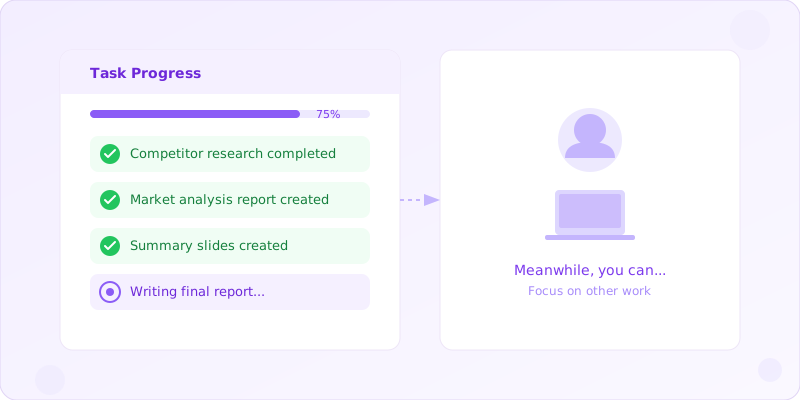
While Chat operates on a "one question, one answer" basis, Cowork lets Claude work autonomously on tasks for you.
Here's what a typical workflow looks like.
- Tell Claude what you need done
- Claude starts working on it in the background
- It only checks in with you when it needs a decision
- Once finished, it presents the deliverable
In other words, you can hand off work to Claude and focus on something else in the meantime.
When Cowork Shines
- Research tasks ("Look into X and put together a summary")
- Document creation ("Turn these specs into a design document")
- Data analysis ("Analyze this CSV and report on the trends")
- Any substantial task you want to delegate from start to finish
Things to Keep in Mind
Because Cowork operates autonomously, it can sometimes head in a direction you didn't intend. The key is to be specific with your initial instructions and check in on progress from time to time.
Code — A CLI Tool Built for Development
The Code tab (Claude Code) is designed specifically for software developers. It looks and feels completely different from a typical chat interface.
How It Fundamentally Differs
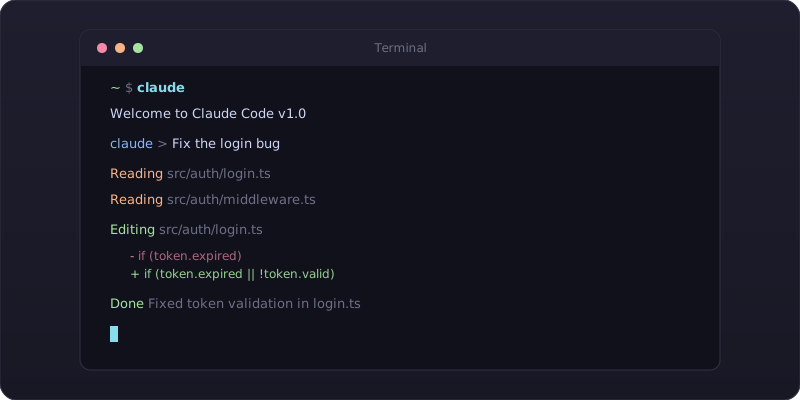
While Chat and Cowork run in the browser, Code operates in the terminal (command line). And its standout feature is the ability to directly read and write actual files.
That means if you say "fix this bug," Claude will read through your repository, locate the problem, apply the fix, and even run the tests — all on its own.
What You Can Do with Code
- Develop with full awareness of your existing codebase
- Investigate and fix bugs
- Implement new features
- Write and run tests
- Refactor code
- Handle Git operations (commits, pull requests, etc.)
When Code Shines
For anyone doing serious software development, this is hands down the most powerful option. Especially when you want to add to or modify an existing project, it's far more efficient than copying and pasting code snippets back and forth in Chat.
Things to Keep in Mind
If you're not used to working in a terminal, it might feel a bit intimidating at first. That said, you can give instructions in plain language, so you rarely need to memorize any commands.
Side-by-Side Comparison Table
| Feature | Chat | Cowork | Code |
|---|---|---|---|
| Environment | Browser / App | Browser / App | Terminal (CLI) |
| Interaction Style | Back-and-forth conversation | Delegate and let it run | Instruct → file ops → result |
| File Handling | Upload only | Upload + generate | Direct read/write |
| Background Execution | No | Yes | Yes |
| Target Users | Everyone | Everyone | Developers |
| Learning Curve | Low | Low | Moderate |
| Best For | Q&A, brainstorming, writing | Research, bulk tasks | Software development |
Recommended Use Cases by Scenario
For Business Professionals
I'd recommend getting comfortable with both Chat and Cowork.
Use Chat for quick questions and brainstorming sessions. For bigger tasks like "Summarize the action items from these meeting notes," switch to Cowork. Just this simple split will noticeably boost your productivity. For more on the importance of mastering AI, check out our article on jobs at risk from AI and how to stay ahead.
For Engineers
When you're actively developing, Code is the clear winner. It understands your entire codebase before making changes, which is worlds apart from pasting code fragments back and forth in Chat.
That said, Chat is still the better choice for discussing architecture decisions or hashing out design approaches. It's easier to organize your thoughts through real-time dialogue.
For Students and Beginners
Start with Chat. The interface is simple and there's something reassuring about being able to ask anything. Once you're comfortable, try giving Cowork a slightly bigger task like "Draft an outline for my essay" — that's when you'll start to see what Claude is really capable of.
Tips for Getting the Most Out of Each Tab
1. Ask Yourself "Which Tab?" Before You Start
This is the single most important habit. Instead of just thinking "I'll ask Claude," train yourself to decide whether to use Chat or hand it off to Cowork. Picking the right tab alone can significantly improve both the quality of the output and the time it takes.
2. Give Cowork a Clear End Goal
Vague instructions like "put something nice together" tend to produce disappointing results. Be specific about what you want: "Compare these from three angles in a table format, and include one recommendation at the end." The clearer your vision for the deliverable, the better Cowork performs.
3. Use CLAUDE.md with the Code Tab
If you place a file called CLAUDE.md in your project root, Claude will understand your project's context before it starts working. Write down rules like "This project uses TypeScript" or "Tests are written in Jest" — it makes a remarkable difference in accuracy.
Conclusion
Claude's three tabs are each designed to serve different needs.
- Chat: For quick questions and thinking things through in conversation
- Cowork: For delegating substantial tasks and letting them run in the background
- Code: For serious software development work
Simply breaking out of the "just use Chat for everything" mindset will completely change how you work with Claude. Give all three tabs a try starting today — you might be surprised at the difference.
Frequently Asked Questions
Are Claude's Chat, Cowork, and Code modes free to use?
Chat and Cowork are available on Claude.ai even with the free plan, though usage limits apply. Code (Claude Code) requires a Pro plan or higher and runs from the terminal.
I'm confused about the difference between Cowork and Code. How should I choose?
Cowork runs in the browser and autonomously handles general-purpose tasks like research and document creation. Code runs in the terminal and can directly read and write files, making it a tool specifically for software developers. A simple rule: use Cowork for non-coding tasks and Code for programming.
Can I use the Code tab even without programming experience?
Since you can give instructions in plain language, you rarely need to memorize commands. That said, having a basic understanding of terminal usage and project structures will help you get more out of it. We recommend starting with Chat or Cowork first, then trying Code once you're comfortable.
![15 Jobs Most Likely to Be Replaced by Generative AI — And How to Future-Proof Your Career [2026]](https://az-arte.com/images/articles/ai-job-loss-featured-en.svg)
![Generative AI Knowledge Cutoff Dates Compared: ChatGPT, Claude, Gemini & More [2026]](https://az-arte.com/images/articles/ai-cutoff-featured-en.svg)
![Which Frameworks Are Most Generative AI-Friendly? A Complete Compatibility Guide [2026]](https://az-arte.com/images/articles/ai-friendly-frameworks-en.svg)